
- Training
- Service
- Promotion
- Schedule
- Testing Center
- News
- Contact
9/7/2021


Bottom Line: Learn a quick time-saving tip for inserting slicers and see the advantages of this way over other methods.
Skill Level: Intermediate
There are several ways to insert a slicer into your Excel worksheet, but my preferred way is through the built-in Pivot Table fields list.
What is a slicer?
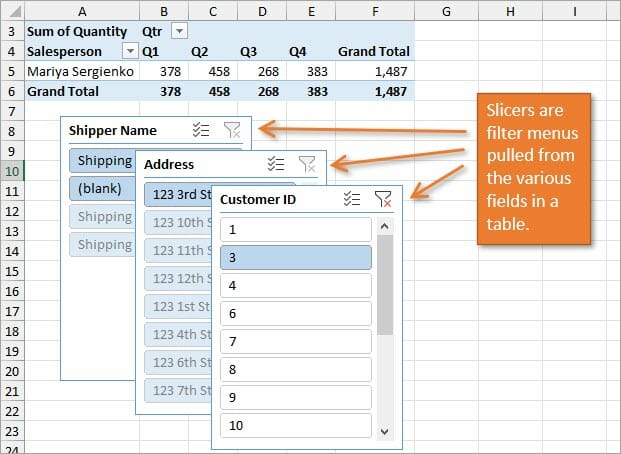
A slicer is a tool that allows us to filter a report by simply clicking any of the items listed in the slicer. It's basically a custom menu of filtering buttons, and can be used for charts, tables, or Pivot Tables.
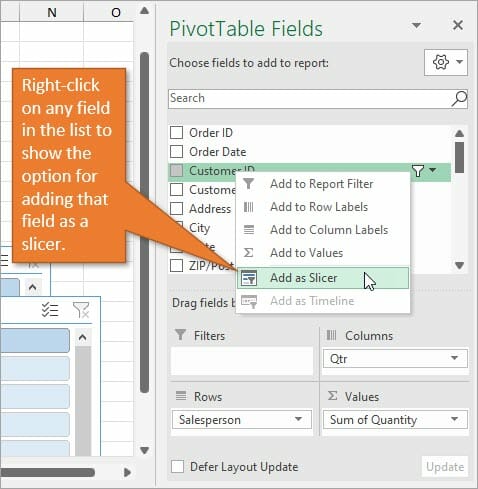
The best method (IMHO) for inserting a slicer is to use the pivot table fields list in the right-hand task pane. By right-clicking on any field in the list, you will bring up a menu that includes the option to Add as Slicer.
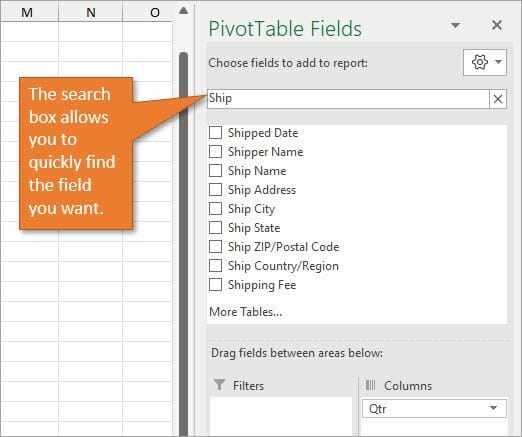
I like this method because the fields list has a search box, so you can easily find the field you want a slicer for. This is super useful when you have a really long list of fields to look through.
A couple of other ways to add slicers to your worksheet include:
You can go to the Insert tab and select the Slicer button on the Ribbon.
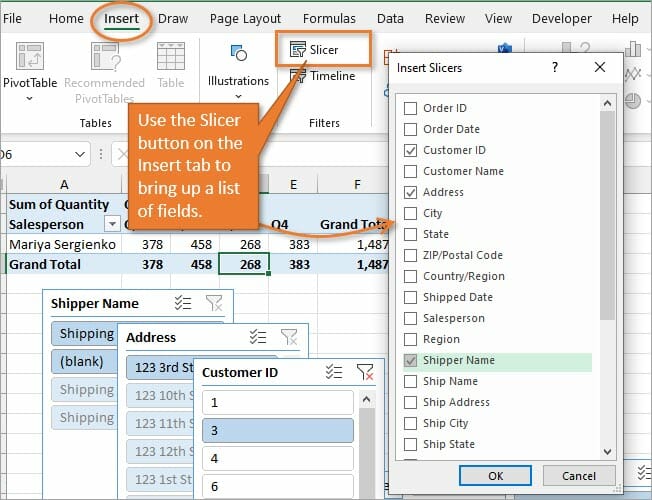
This option doesn't have a search box, so you have to scroll through the list to find the fields you want.
You can also bring up the same fields list by going to the PivotTable Analyze tab. (In some versions this is called the PivotTable Options tab.) Then choose the Insert Slicer button. You have to start with any cell in the Pivot Table selected in order to access that tab.
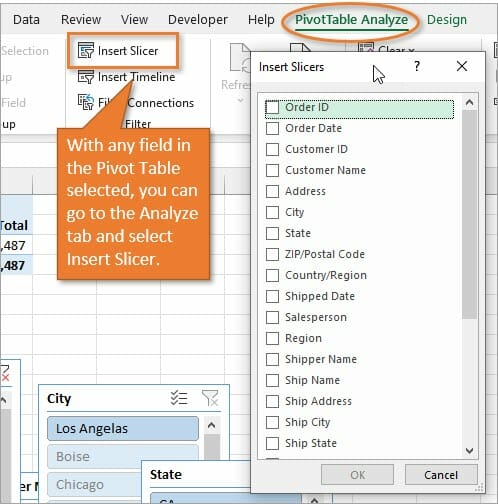
Again, there is no search feature using this method. One advantage of using the Insert Slicers window is that you can select multiple fields for simultaneously inserting several slicers.
Source: excelcampus.com

12/11/2025


